Creating and Grouping Identities
Identities, particularly Group Identities, serve many purposes in Innovator. Here are some examples of these uses and purposes:
· define and control user/group security, or the permissions allowed for the particular group.
· determine what actions may be performed on an Item, such as add, update, delete, and/or
· discovery privileges.
· determine activity assignments, such as an approval process in a workflow step.
· can promote Life Cycle State and be assigned for Workflow Activities.
Multi-tiered hierarchy access can be created using Group Identities. All members of an Identity inherit the access privileges of the Identity. Members are assigned through the ‘Member’ tab in the Identity ItemType. A User Alias Identity may belong to more than one group identity, in which case the user's access or permissions would be cumulative.
The table below provides a list of typical Identities. All new Users are automatically added to World.
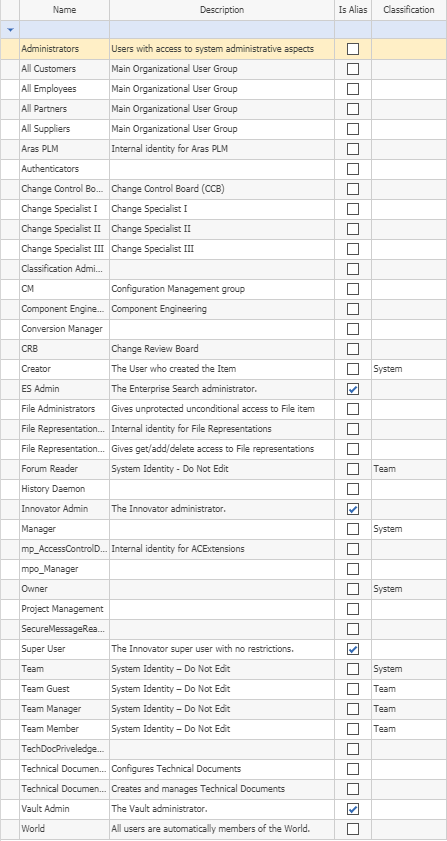
Here is how to create a new Identity and add other identities as its members:
From TOC --> , select .
Click the New Item icon to display the Identity form:
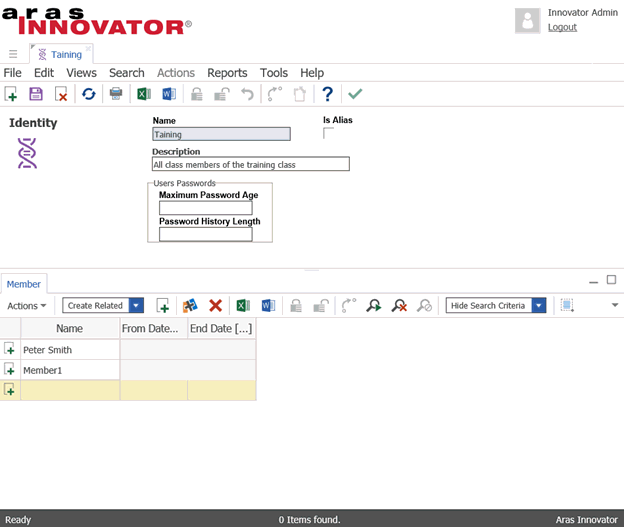
Fill out the following properties:
a. Name - the name of the identity. This is a required value.
b. Description - the description of the identity, typically for identification purposes.
c. Is Alias - indicates if this identity corresponds to a specific Logon User. Group identities are not
aliases.
d. Member tab - lists all members of this group identity.
To add members to the identity, two choices are available - to add existing identities, or to create new identities as they are being added. Each option has its advantages. If you are creating a new structure, as described in Managing Users, then creating new identities on the spot is a great idea.
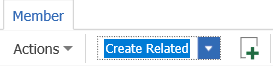
To add new identities, use the option from the Actions drop down box.
 .
.
To add existing members, use the option from the Actions drop down box.
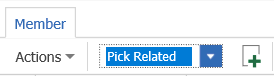
a. Click on the icon  next to the Action drop down box.
b. If creating a new identity, just type in the name of the new identity. If adding an existent identity, a search dialog will open.
c. Select the identity or identities to add as members, and click the icon  to exit the dialog.